We use cookies for personalizing content and ads and providing social media features. Your usage information on our website will be used for social media, advertising, and traffic analytics, or shared with our partners. Clicking "Accept" means you agree to use our cookies .
“I forgot my Windows 11 password and have no password reset USB, can I reset Windows 11 password without USB?”
Forgetting your password on Windows 11 can be frustrating—especially if you don’t have a password reset USB. But don’t worry: you still have several safe and effective ways to regain access without losing your files. In this complete guide, you’ll learn how to reset your Windows 11 password without a USB step-by-step, whether you’re using a Microsoft account or a local account.
Method 1: Reset Password via Microsoft Account (Best & Easiest)
If your PC uses a Microsoft account, this is the fastest solution. You need to get another device with internet connection to change the Microsoft account password.
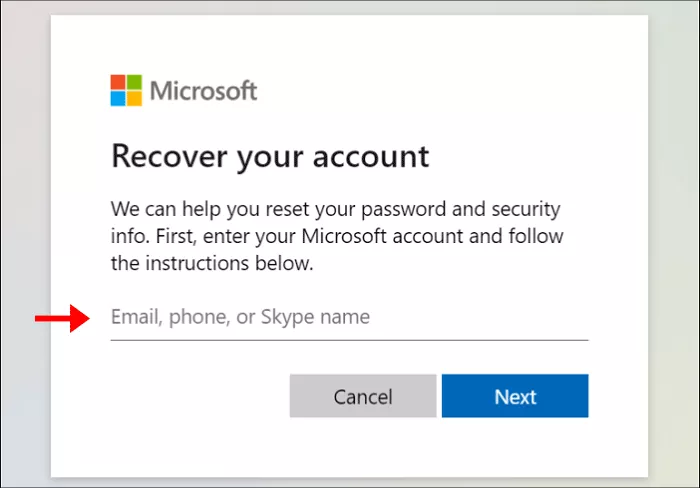
Step 1: Navigate to Microsoft account password recovery page on your accessible device: https://account.live.com/password/reset. Then enter the locked Microsoft account.
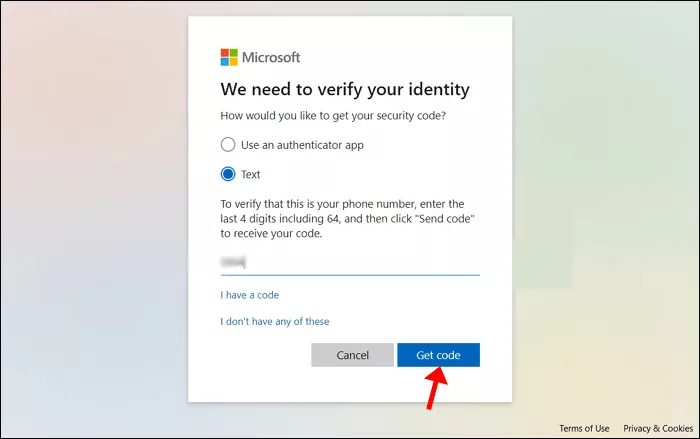
Step 2: Follow the instructions to verify the Microsoft account belongs you. Then you can create a new password for the Microsoft account and unlock your Windows 11 screen.
Method 2: Reset Password Using Security Questions
If you’re using a local account, Windows 11 may allow password recovery through security questions. You can directly answer these questions on the login screen to reset the password. But this only works if you set up security questions beforehand.
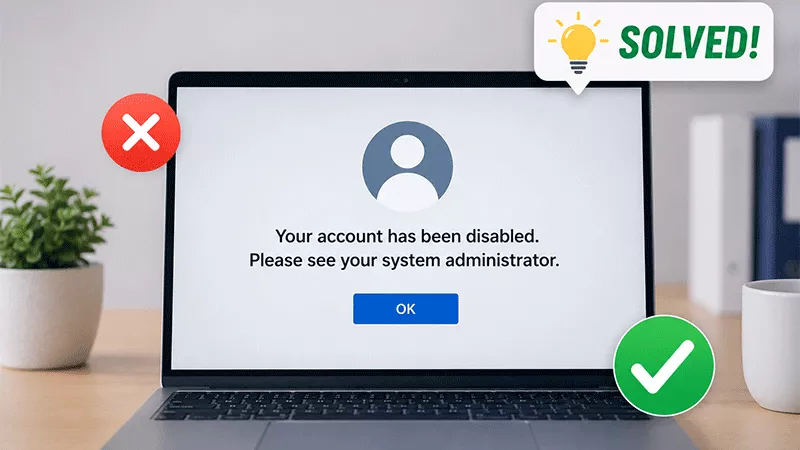
Step 1: On Windows 11 login screen, enter the possible password. When the message “the password is incorrect. Try again” shows on the screen, hit the OK button.
Step 2: Now you can get the Reset Password option. Click it and answer the security questions.
Step 3: Answer your security questions correctly and set a new password. After that, you can immediately regain access to the Windows 11 PC without USB.
Method 3: Use Other Sign-in Options
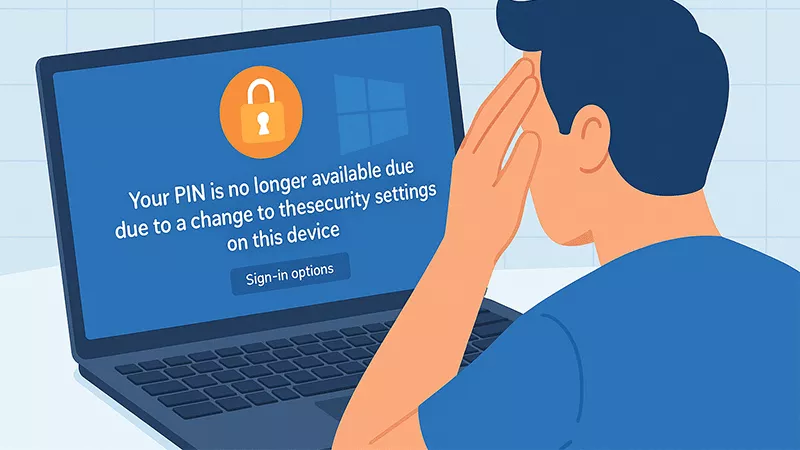
Before trying complex fixes, check if you can log in another way. After all, Windows 11 supports multiple sign-in options: PIN code, fingerprint, Windows Hello and picture password. If there is another available sign-in option, you can easily unlock Windows 11 without USB disk by clicking the Sign-in options on the login screen to switch methods.
Method 4: Reset Password via Command Prompt
If you are using the local account with no security questions and no other sign-in options, how can you reset Windows 11 password with no password reset disk? Is it possible to unlock Windows 11 without data loss?
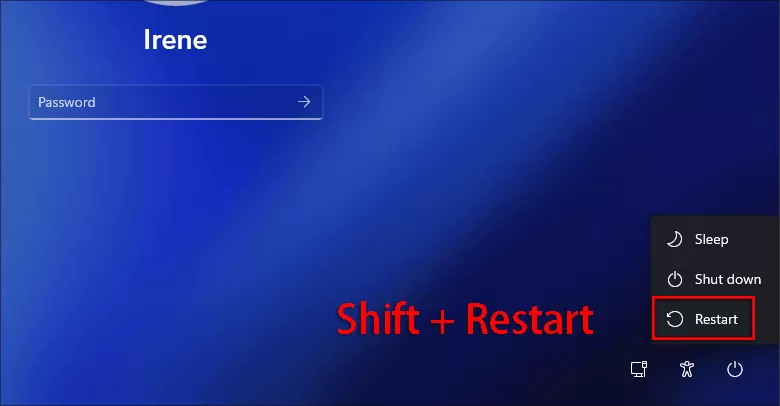
Step 1: On the login screen, hold the Shift key and hit the Restart option from the Power menu. In no time, you are in the Windows Recovery Environment.
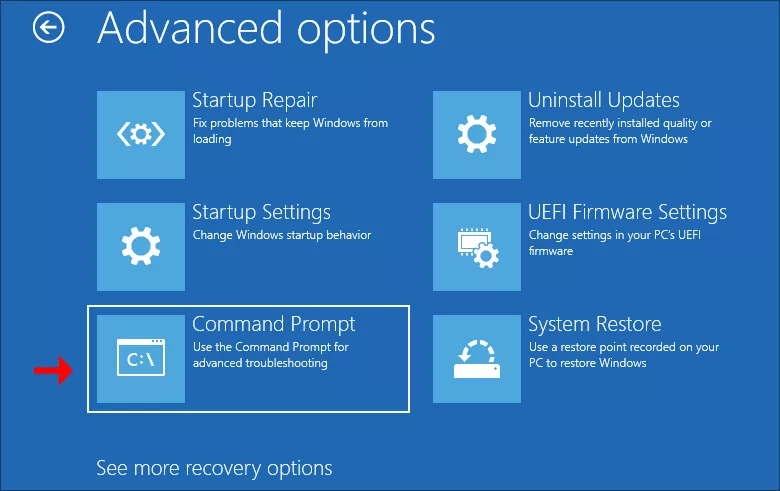
Step 2: Now you can choose Troubleshoot > Advanced Options > Command Prompt to proceed.
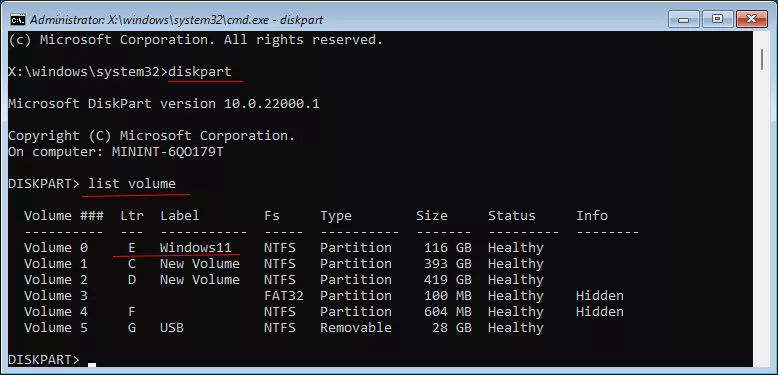
Step 3: Run command line: diskpart and list volume to check the system drive. Now you can see the E drive is the system volume.
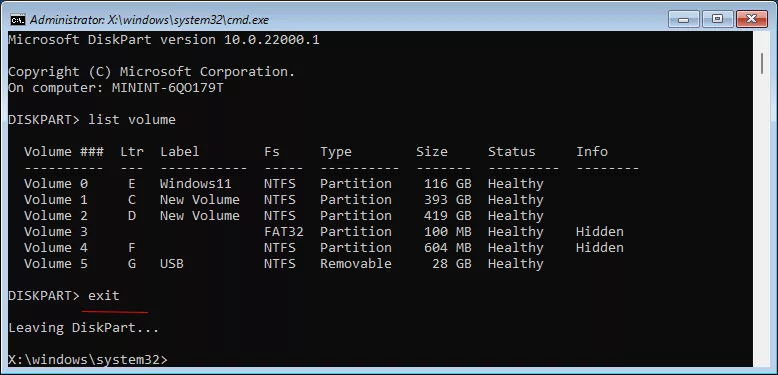
Step 4: Run command line: exit to leave DiskPart tool.
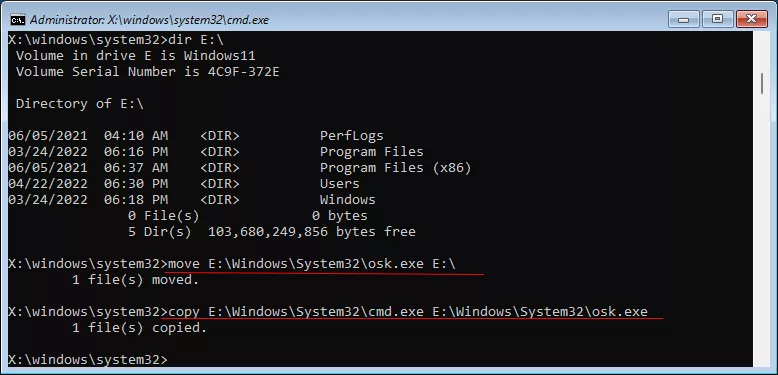
You should replace E with the drive letter of your system volume.
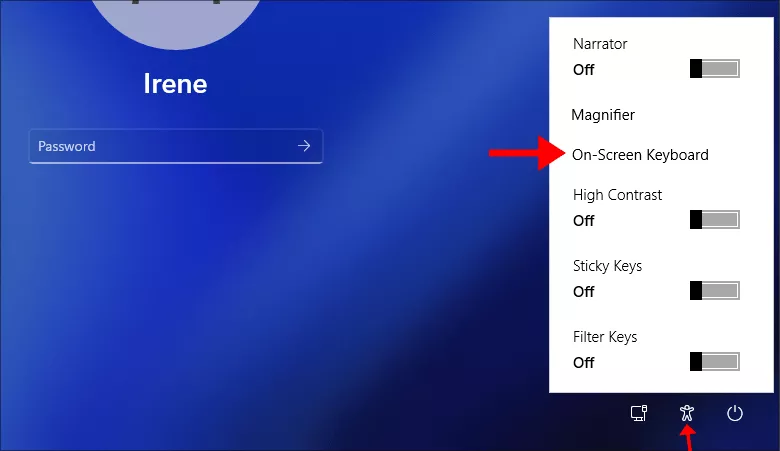
Step 6: Now the computer restarts and you are in the Windows 11 login screen. Click the second icon on the bottom right corner and choose the On-Screen keyboard option. (Actually, it is the Command Prompt option now.)
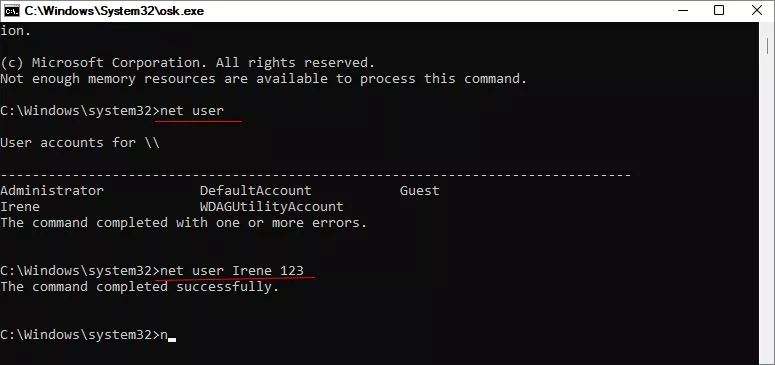
Step 7: Run command line: net user to view all users accounts in your Windows 11.
Step 8: Run command line: net user Irene 123 to reset the login password to 123.
After that, you can login the Windows 11 with new password.
Note:
After you sign-in Windows 11 successfully, it is necessary to recover the OSK program. Just run command prompt as administrator and execute the command line: move C:\osk.exe C:\Windows\System32\osk.exe .
Tips: Create a Password Reset USB on Any Computer to Unlock Windows 11
Is there any easier way to reset Windows 11 when forgot password without the password reset disk? Yes, iSunshare Windows Password Geniuscan help you create a password reset disk for any Windows computer. You just need an accessible device, no matter it is a Windows PC, Mac computer or Android phone.
Step 1: Get iSunshare Windows Password Genius on your device. Here, another accessible Windows computer is selected to download and install this program.
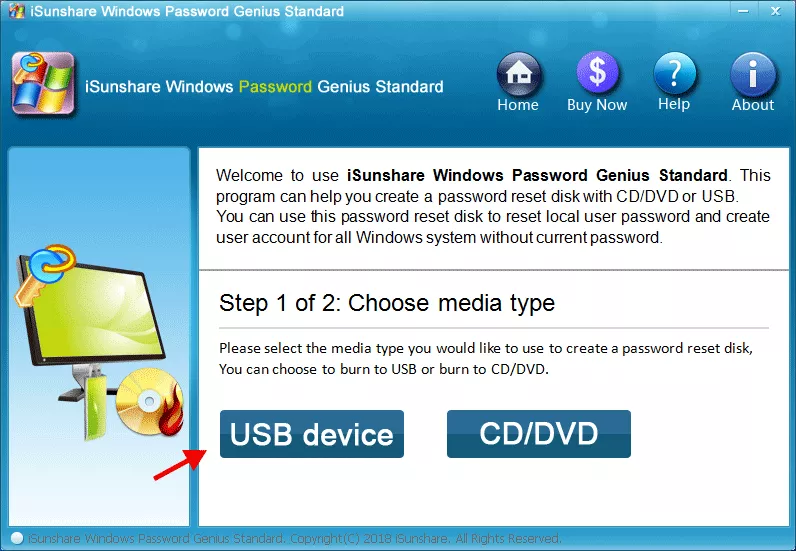
Step 2: Open the program and choose the USB device option.
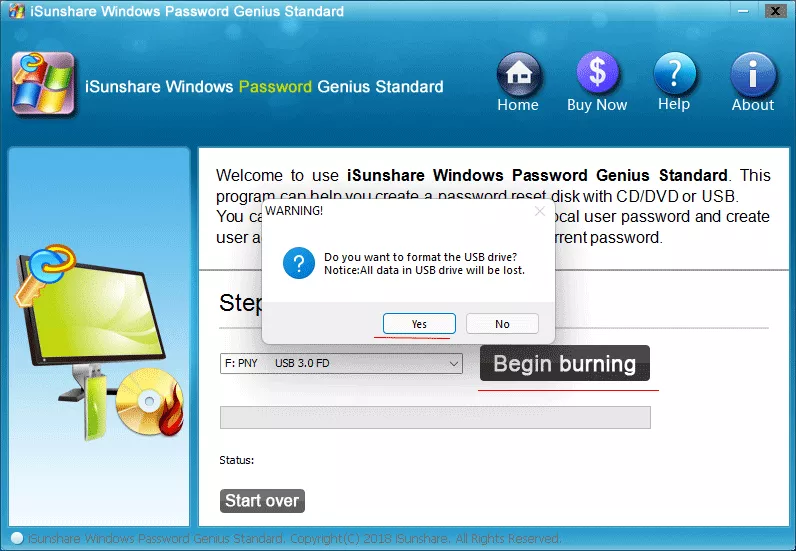
Step 3: Insert the USB disk and hit the Begin burning option. A prompt pops up and you can click Yes to continue. Minutes later, the password reset disk is made.
Step 4: Now disconnect the password reset disk and insert it into your Windows 11 computer. Reboot your Windows 11 and set USB disk as the first boot option by pressing F12.
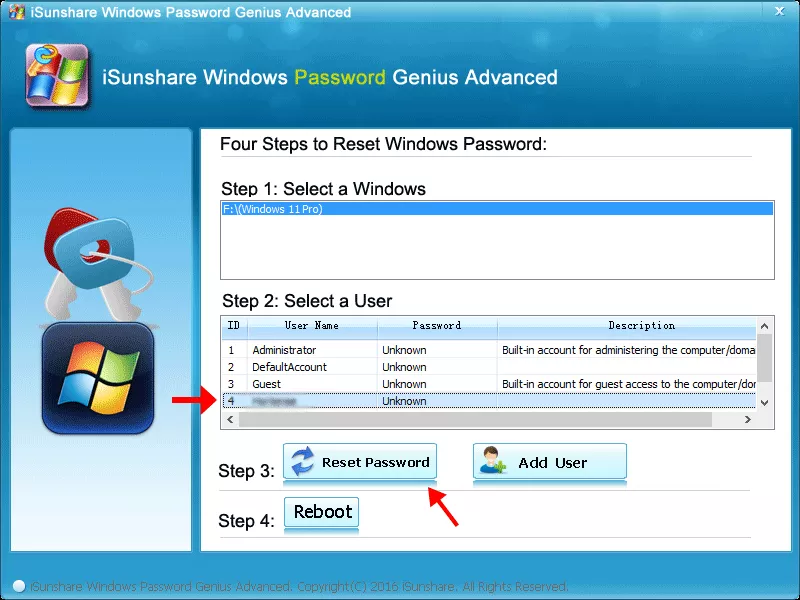
Step 5: Now you can see iSunshare Windows Password Genius again. Go to click the target account and click the Reset Password option.
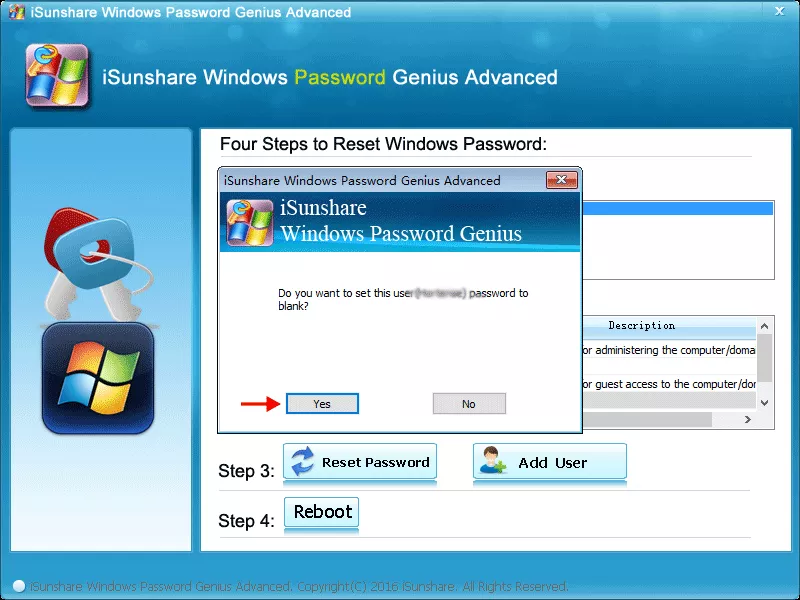
Step 6: A small window pops up and you can click Yes to remove the Windows 11 forgotten password.
FAQs on Windows 11 Forgot Password
1. Can I reset Windows 11 password without USB?
Yes, of course. The above methods can help you to reset the forgotten Windows 11 password safely when you do not create the password reset USB before. Besides, you can resort to iSunshare Windows Password Genius to create the reset USB even you are locked out.
2. Is there any free way to bypass Windows 11 login password when locked out?
Yes, you can take advantage of the Command Prompt to reset the Windows 11 login password. It is free but complex, not suitable for beginners.
3. Can I unlock Windows 11 without losing data?
Yes, both methods mentioned in this article will not cause any damage to your Windows 11.
Conclusions
Don’t be upset if you are locked out of Windows 11 and cannot figure out the correct login password. In this article, we listed the possible methods to reset Windows 11 password, from other sign-in options to command line, you can have a try.