We use cookies for personalizing content and ads and providing social media features. Your usage information on our website will be used for social media, advertising, and traffic analytics, or shared with our partners. Clicking "Accept" means you agree to use our cookies .
Trying to reset your Windows password only to encounter error 0x800F081F can quickly turn into a major headache. In many situations, the system gets stuck because Windows cannot access critical repair files needed for updates, recovery functions, or account verification.
Unlike ordinary update failures, this error often appears when Windows attempts to repair system components connected to login credentials or account recovery. Fortunately, there are several practical ways to solve it without wiping your entire computer. This article walks through fresh and effective solutions that can help eliminate the 0x800F081F issue on Windows 11.
Error 0x800F081F usually means Windows is unable to locate or repair damaged operating system files. During password recovery or system updates, Windows relies on internal recovery packages. If those files become corrupted or inaccessible, the process may fail.
Common triggers include:
Incomplete Windows updates
Broken recovery packages
Corrupted system image files
Damaged Windows component store
Missing .NET Framework files
Interrupted shutdown during updates
Third-party optimization tools modifying system files
Sometimes the issue appears immediately after a failed password reset, a Windows update crash, restoring a backup, or using advanced startup repair.
Solution 1: Restart Core Update Components
Windows repair services occasionally freeze in the background. Restarting them can refresh the update system completely.
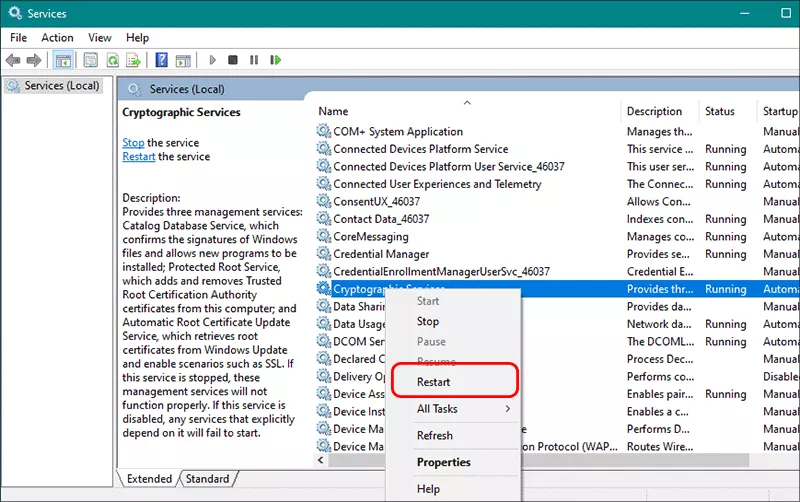
Step 1: Press Windows + S, search for Services, and open the Services app.
Step 2: Now locate these services: Windows Update; Background Intelligent Transfer Service; Cryptographic Services.
Step 3: For each service, right-click it and choose Restart. After restarting the services, reboot the computer and retry the password recovery process.
Solution 2: Reinstall Missing .NET Components
Certain Windows recovery functions rely on Microsoft .NET Framework. If those files are missing, Windows update operations can fail. You can follow below steps to enable .NET Framework again.
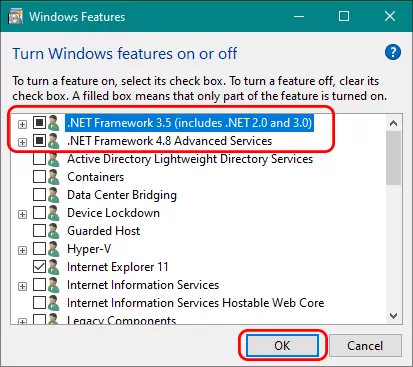
Step 1: Press Windows + R and type: optionalfeatures. Press Enter to proceed.
Step 2: Tick the box before .NET Framework 3.5 and .NET Framework 4.x Services option.
Step 3: Click OK and allow Windows to install required files.
Solution 3: Repair Corrupted System Files Automatically
Windows includes built-in repair tools that can scan for damaged operating system files. You can run the Repair Scan with the below steps.
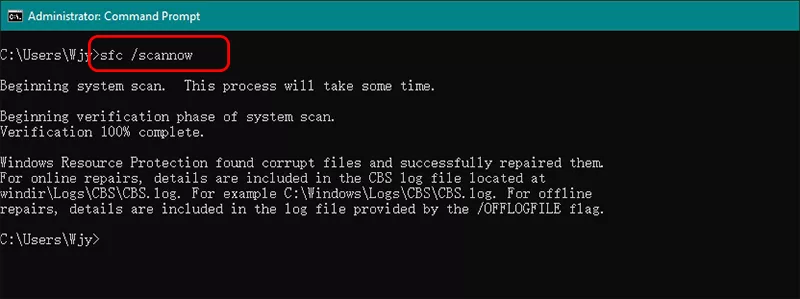
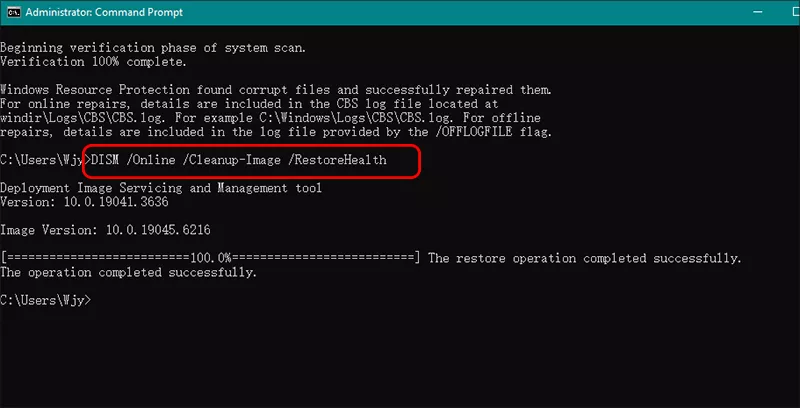
Step 1: Open Command Prompt as Administrator and enter sfc /scannow. This process checks protected Windows files and replaces corrupted copies automatically.
Step 2: Run DISM /Online /Cleanup-Image /RestoreHealth to download healthy system files and rebuilds damaged Windows components. The scan may pause at certain percentages temporarily — this is normal.
Solution 4: Rebuild the Windows Update Cache
Broken update cache files are one of the biggest reasons 0x800F081F keeps returning.
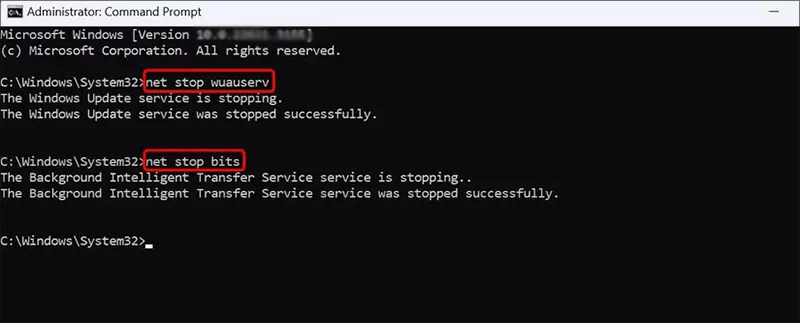
Step 1: Launch Command Prompt as Administrator and stop update services with the below command line:
net stop wuauserv
net stop bits
Step 2: Run the command line to rename the update folders:
Step 3: Execute the command line to restart the services:
net start wuauserv
net start bits
Step 4: Restart the computer afterward. Windows will automatically generate fresh update folders.
Tips: Back up Your Computer Data in Advance
If you are worry about losing important data during the error repairing process, it is highly recommended to back up the data to external hard drive. iSunshare CloneGo offers you the easy system backup solution, which allows you to back up the system partition, data partition or even the entire disk. It also supports backing up data without booting into Windows.
iSunshare Reliable Disk/Partition Clone Software
Back up Windows 11 to HDD/SSD or external hard drive
Clone Windows system to SSD/HDD without reinstalling
Copy hard drive to another hard drive safely
Create WinPE to run the software without booting OS
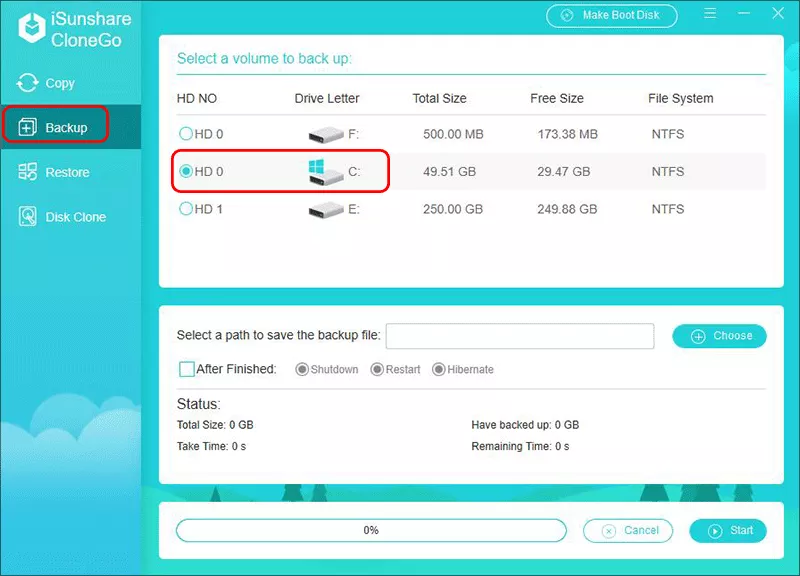
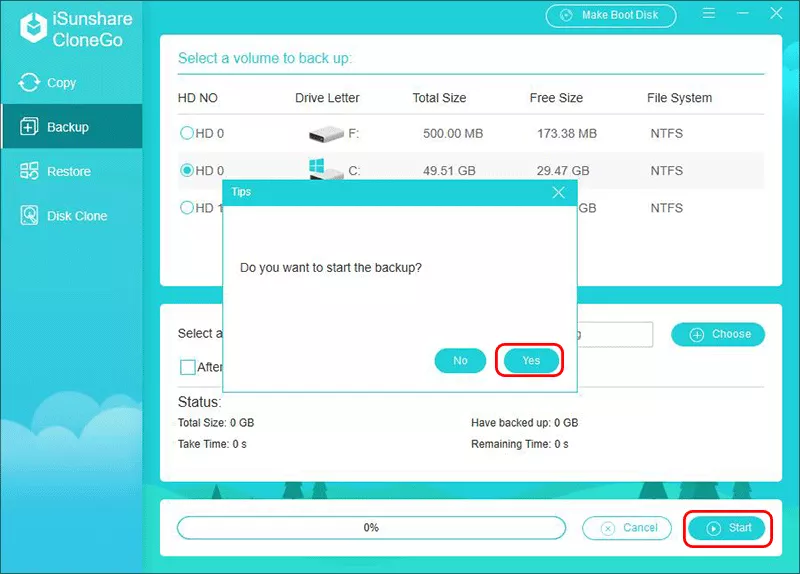
Step 1: Open iSunshare CloneGo on your Windows 11 computer.
Step 2: Go to the Backup interface. Now the system partition is chosen as the backup source. If you are going to back up the data partition, just select the drive without the Windows icon.
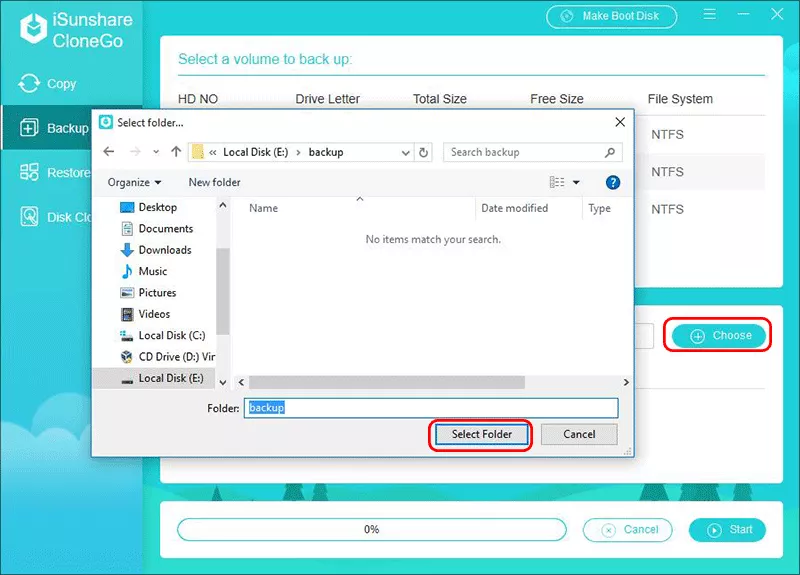
Step 3: Click the Choose button to set a path to store the system image file. It is better to choose an external hard disk as the destination.
Step 4: After that, click the Start button and Yes button to back up your Windows system.
FAQs on Error 0x800F081F in Windows 11
1. What does error 0x800F081F mean?
When this error occurs, generally, it fails to find the source system file for updating. System core files are missing or damaged, and Windows cannot download replacement files from Microsoft’s servers, so updates or installations fail.
2. Can corrupted updates affect password reset?
Yes. Broken Windows components may interfere with login recovery and authentication services.
3. Does resetting Windows remove the error?
Usually yes, but resetting should only be used after repair methods fail. Besides, it may lead to the data loss in your Windows 11.
4. How to avoid error 0x800F081F occur again?
To avoid seeing this error again: don’t interrupt Windows updates; keep at least 20GB of free storage; avoid aggressive registry cleaners; create restore points regularly; use official Windows update sources only; shut down the PC properly; and regular maintenance significantly lowers the chance of system corruption.
Conclusion
Windows 11 error 0x800F081F is typically linked to damaged update components, corrupted recovery files, or broken system images. While the message looks serious, most users can repair the issue using built-in tools like SFC, DISM, and update cache rebuilding. It is also recommended to back up data regularly to protect your data from data loss.