We use cookies for personalizing content and ads and providing social media features. Your usage information on our website will be used for social media, advertising, and traffic analytics, or shared with our partners. Clicking "Accept" means you agree to use our cookies .
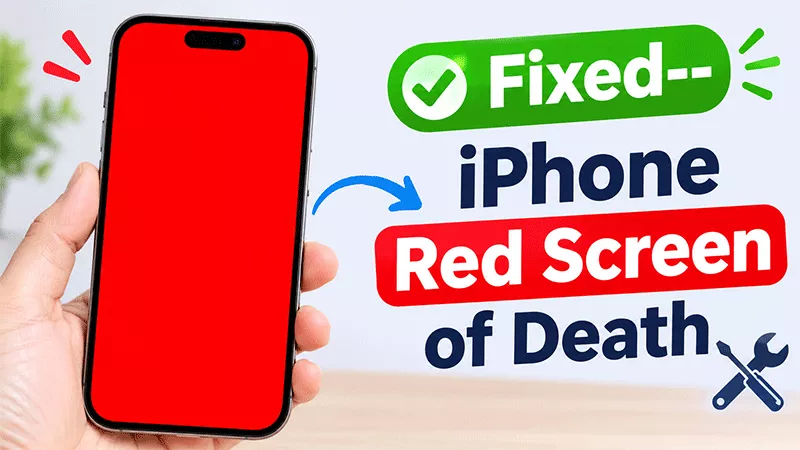
You pick up your iPhone and the whole display is red. Maybe the screen is solid red, maybe a red Apple logo keeps looping after an update, or maybe it flickers red and ignores every tap. People call this the iPhone red screen of death (RSOD), and it looks alarming. The good news is that in most cases it is a software problem you can fix at home, and several of the fixes do not touch your data.
This guide gives you seven fixes in order, from the quickest and safest to the last-resort options that erase the phone. The steps apply to iPhone 17, iPhone 16, iPhone 15 and earlier models running iOS 27, iOS 26 or older versions.
Quick Answer
First rule out a red tint in Settings > Accessibility > Display & Text Size. If the red screen is real, force restart the iPhone. If it stays, update it through a computer in recovery mode (choose Update, not Restore) or use an iOS repair tool that keeps your data. Restore only as a last resort. A red screen that survives a full restore points to a hardware fault.
Start by matching what you see to the likely cause. It saves you from erasing a phone that only had a settings problem.
What You See
Most Likely Cause
Start With
Red tint over a screen that still works; you can tap and swipe
Color Filters, Reduce White Point, Invert Colors, or Night Shift
Fix 1
Red screen while charging, or when the battery is almost empty
Low battery, faulty cable, or charger
Fix 2
Solid red screen with no response to touch
Frozen system or software glitch
Fix 3
Red screen or red Apple logo that loops or stalls after an update
Interrupted iOS update or corrupted system files
Fix 5 or Fix 6
Red screen with lines or flicker, or after a drop or water exposure
Damaged display or logic board connection
Hardware section
Red screen even in recovery mode or after a restore
Most likely hardware
Hardware section
Why is my iPhone screen red?
The red screen of death has several possible triggers. Knowing which one fits your situation helps you pick the right fix.
Failed or corrupted iOS update. An update Interrupted by low battery, low storage or a dropped connection is one of the most common causes of a red screen or red Apple logo loop.
Software glitch or system crash. A bug after a recent update or a crashed process can freeze the display on red.
Display or accessibility settings. Color Filters, Invert Colors, Reduce White Point and Night Shift can tint the screen red. This is not a true red screen of death.
Charger, cable or battery. A damaged cable or an almost empty battery can cause odd display behavior while charging.
Physical damage. A drop, water exposure or pressure on the phone can loosen the display connection or damage the logic board.
Seating of the SIM tray. Some users report a red screen after a badly seated SIM tray. It is rare, but it takes only a minute to check.
Fix 1: Disable red tint in your settings
If the iPhone still responds to touch, a display setting is the most likely cause. Check these in order:
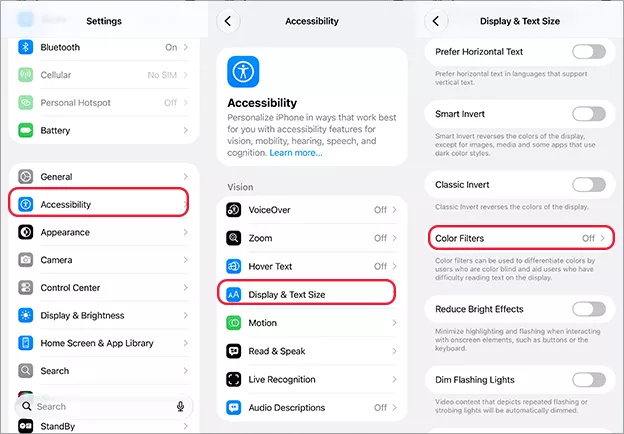
Step 1: Open Settings > Accessibility > Display & Text Size.
Step 2: Tap Color Filters and switch it off. A red or color-tinted filter makes the whole screen look red.
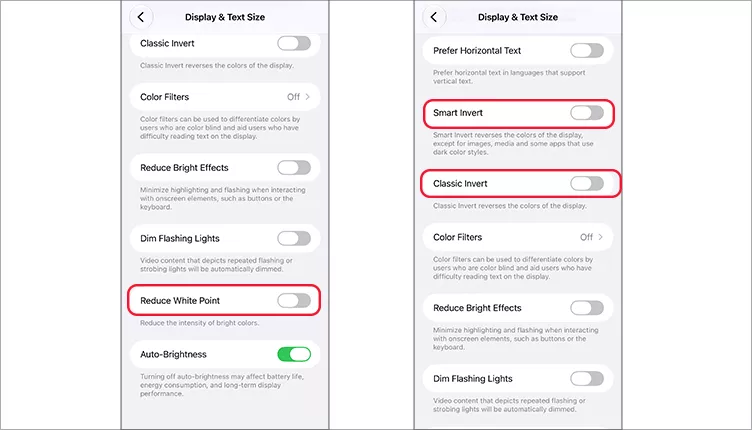
Step 3: Switch off Reduce White Point, then check that Smart Invert and Classic Invert are off.
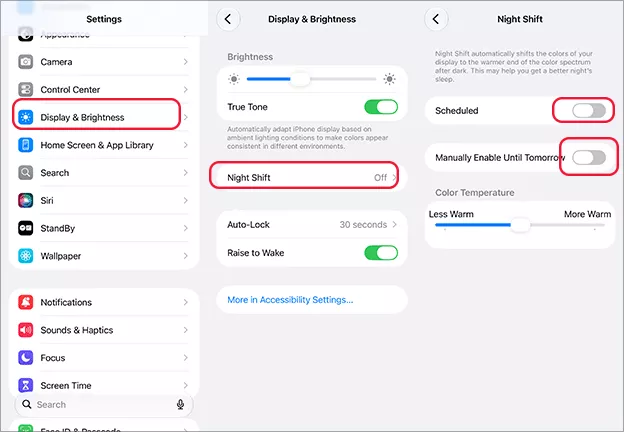
Step 4: Go to Settings > Display & Brightness > Night Shift and turn off the schedule and manual option.
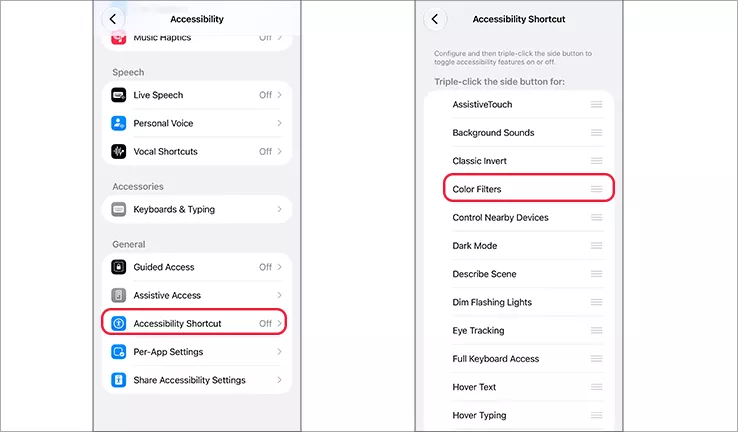
Step 5: If the tint comes back, open Settings > Accessibility > Accessibility Shortcut and check whether Color Filters is assigned to a triple-click of the side button.
Fix 2: Charge with a known-good cable and adapter
A nearly empty battery or a damaged cable can cause a red display, especially if the red screen appeared while charging.
Step 1: Plug the iPhone into a wall outlet with an Apple or MFi-certified cable and adapter.
Step 2: Leave it charging for at least an hour, even if the screen looks wrong.
Step 3: Try a different cable, adapter and outlet to rule out a faulty accessory.
Step 4: Check the charging port for lint and gently clear it with a soft, dry, non-metal tool.
Fix 3: Force restart the iPhone
A force restart clears temporary software glitches and does not erase data. It is the single most effective first step for a frozen red screen. The button sequence depends on your model:
iPhone Model
Force Restart
Enter Recovery Mode (iPhone Connected to a Computer)
iPhone 8 and later, including iPhone SE (2nd and 3rd gen), iPhone 17, 16, 15, 14, 13, 12, 11, and X
Press and release Volume Up, press and release Volume Down, then hold the Side button until the Apple logo appears.
Use the same three-button sequence, but keep holding the Side button after the Apple logo until the recovery mode screen appears.
iPhone 7 and 7 Plus
Hold Volume Down and the Side button together until the Apple logo appears.
Hold Volume Down and the Side button until the recovery mode screen appears.
iPhone 6s and earlier, iPhone SE (1st gen)
Hold the Home button and the Top (or Side) button together until the Apple logo appears.
Hold the Home button and the Top (or Side) button until the recovery mode screen appears.
If the iPhone restarts normally and the red screen is gone, update iOS under Settings > General > Software Update and keep an eye on it for a few days.
Fix 4: Check the SIM tray
This is a quick check if the red screen is intermittent or began after you handled the SIM card.
Step 1: Power off the iPhone if you can.
Step 2: Use a SIM eject tool to pop out the tray and look for dust or a misaligned card.
Step 3: Reinsert the card and push the tray in until it sits flush with the frame, then power on.
Note:
iPhone 14 and later models sold in the United States have no physical SIM tray. Skip this fix on those models.
Fix 5: Update through a computer in recovery mode
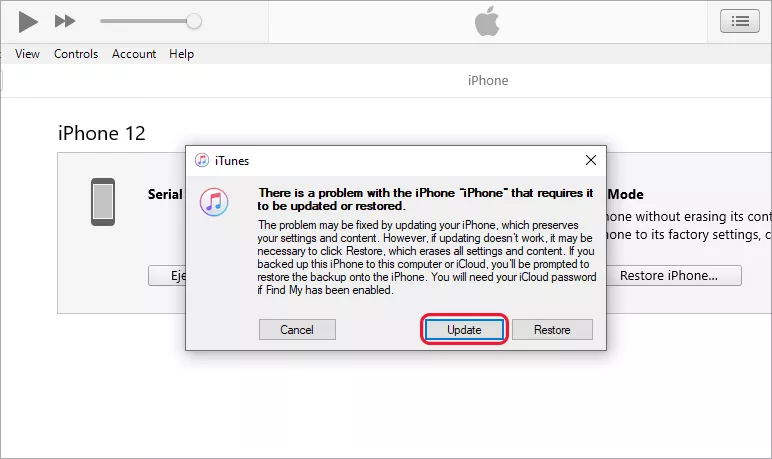
When the iPhone is stuck on a red screen or red Apple logo after an update, reinstalling iOS through a computer often solves it. The key is to choose Update, which reinstalls iOS and keeps your data, rather than Restore.
Step 1: Use a Mac with Finder (macOS Catalina or later) or a Windows PC with the Apple Devices app, or iTunes on older setups. Make sure the computer is up to date.
Step 2: Get your iPhone connected to the computer. Put the iPhone in recovery mode using the table in Fix 3.
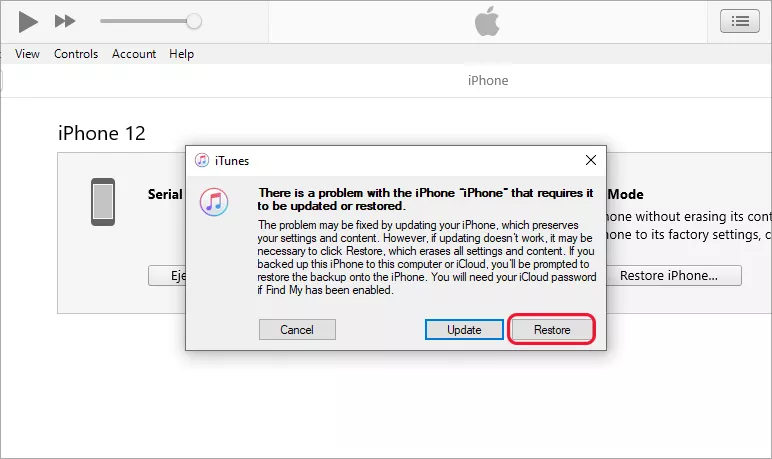
Step 3: When the computer says there is a problem with the iPhone that requires it to be updated or restored, click Update.
Step 4: Wait while the computer downloads iOS and reinstalls it. If the download takes more than about 15 minutes, the iPhone leaves recovery mode; repeat steps 3 and 4.
Note:
Choosing Restore erases the iPhone. If you are not ready to lose the data on it, make sure you click Update.
Fix 6: Repair iOS with iOS Repair Genius (keeps data)
If the update fails, the computer shows an error, or the iPhone keeps returning to the red screen, a dedicated iOS system repair tool is the next step. iSunshare iOS Repair Genius is designed to repair iOS system problems such as a stuck Apple logo, boot loops and colored screens without erasing data in its standard repair mode.
iSunshare Reliable iOS Repair Software
Fix iOS system issues in simple clicks.
Easy to use and no data loss in the entire process.
Support all iPhone models.
Compatible with the latest Windows and Mac version.
Step 1: Download and install iOS Repair Genius on your computer, then launch it.
Step 2: Connect the iPhone to your computer and unlock it.
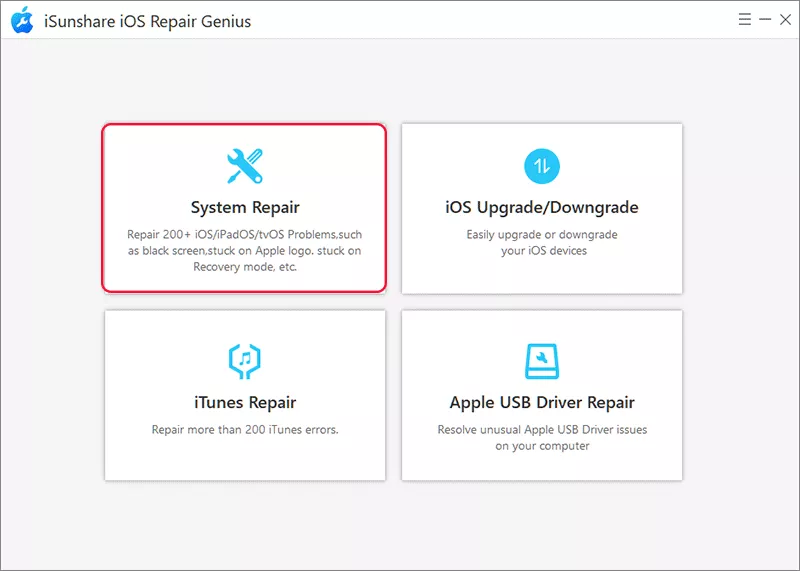
Step 3: Choose the System Repair > Standard Repair option, which keeps your data.
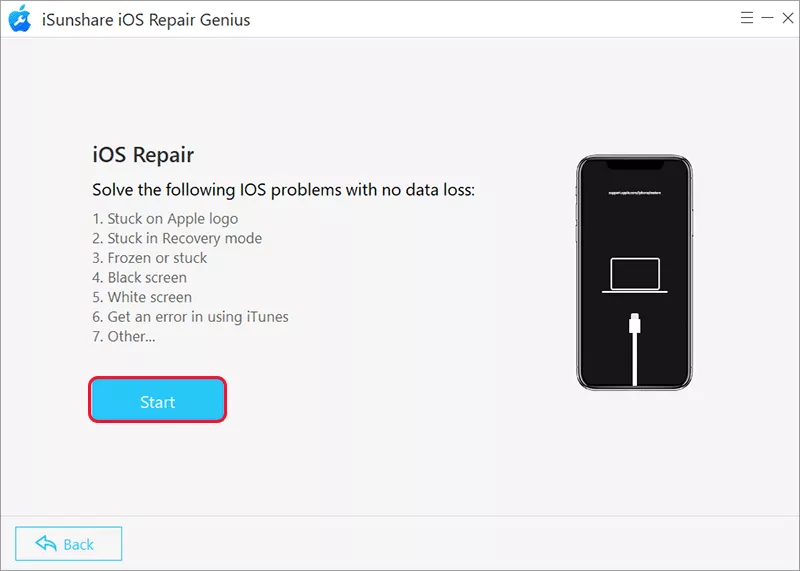
Step 4: Hit the Start and then Next button to detect your iPhone.
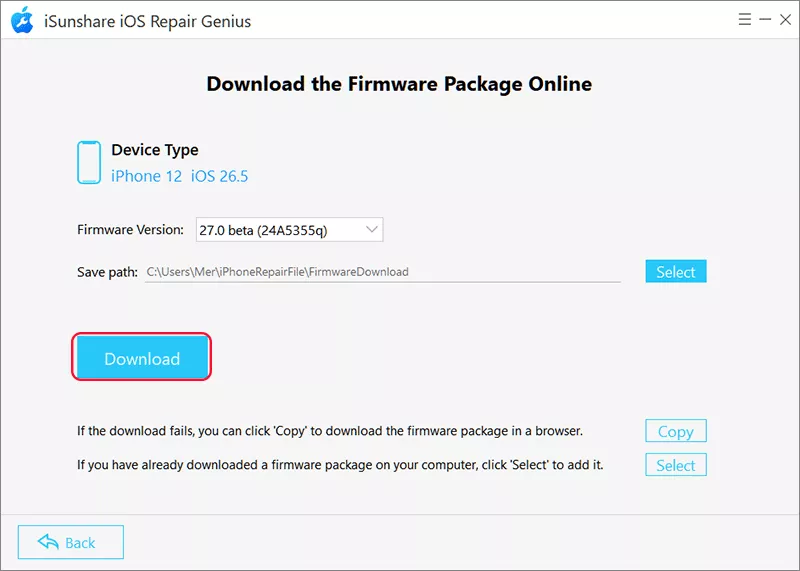
Step 5: Confirm the device model and iOS version, then download the firmware package.
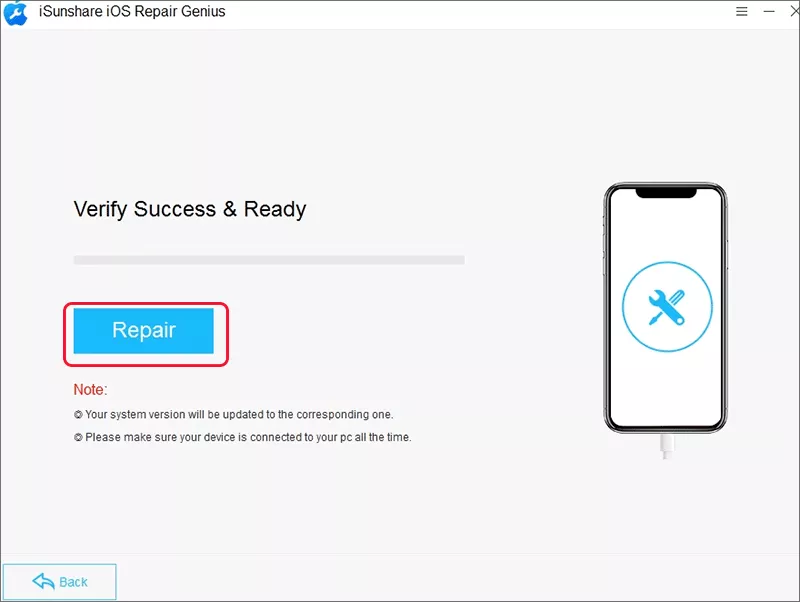
Step 6: Hit the Repair button to start the repair and keep the iPhone connected until it restarts. Do not unplug the cable during the process.
Fix 7: Restore in recovery mode
If every earlier fix fails, restoring the iPhone installs a clean copy of iOS. This erases everything on the device. Restore from a backup afterward.
Before you restore
Back up first if the iPhone lets you. After the restore, the iPhone asks for the Apple ID and passcode it was set up with, so make sure you have them.
Step 1: Connect the iPhone to your computer and put it in recovery mode (see Fix 3).
Step 2: When the prompt appears, click Restore instead of Update, and confirm.
Step 3: Wait patiently until the process ends. When the iPhone restarts, follow the setup screens and restore from an iCloud or computer backup.
When the red screen is a hardware problem
Software fixes cannot repair a damaged display or logic board. Stop and get the iPhone inspected if you notice any of these signs:
The red screen appeared after a drop, water exposure, or the phone being bent or pressed.
The screen shows red or pink lines, flickers, or changes color when you press on the frame.
The red screen stays in recovery mode or returns right after a clean restore.
The iPhone gets unusually hot or shuts down on its own.
Back up your data if the iPhone allows it, then contact Apple Support or an authorized service provider. Check whether the device is still under warranty or AppleCare+, and avoid opening the phone yourself.
FAQ about the iPhone red screen of death
Q1: What does the iPhone red screen of death mean?
It is the common name for an iPhone that shows a solid red screen, a red Apple logo, or a flickering red display and stops responding. It usually points to a software problem such as a failed iOS update, but it can also be caused by a hardware fault such as a damaged display connection.
Q2: Why did my iPhone turn red after an iOS update?
An update that was interrupted, ran short of storage or battery, or installed damaged files can leave the system unable to start properly. Updating or repairing iOS through a computer usually reinstalls the system files and clears the red screen.
Q3: Is a red tint the same as the red screen of death?
No. A red tint over a screen that still responds is normally caused by Color Filters, Reduce White Point, Invert Colors or Night Shift in your settings. A true red screen of death freezes the iPhone or loops on a red screen or logo.
Q4: Can I fix the iPhone red screen without a computer?
Often yes, for the first fixes: check your display settings, charge with a known-good cable and adapter, and force restart. If those do not work, updating, repairing or restoring iOS needs a computer.
Conclusion
An iPhone red screen of death looks serious, but most cases come down to a display setting, a glitch, or a failed update. Start with the quick fixes, update or repair through a computer if the screen persists, and keep restore for last. If the red screen survives a full restore, the cause is hardware, and a repair visit is the right next step.