We use cookies for personalizing content and ads and providing social media features. Your usage information on our website will be used for social media, advertising, and traffic analytics, or shared with our partners. Clicking "Accept" means you agree to use our cookies .
Locked out of Windows 11 and don't know the password? You don't have to wipe the entire PC to get back in. This guide covers the fastest way to regain access without losing any files, plus two password-free ways to do a full factory reset when that's genuinely what you need — from the lock screen, or from installation media if the recovery environment itself won't load.
Reset your password first — you may not need to factory reset at all
A factory reset erases every file, app, and setting on the PC. If your only problem is a forgotten password, that's a lot to lose for something that can usually be fixed in minutes without touching your data.
Option A: Use a sign-in alternative
Windows 11 supports multiple sign-in methods. If you set up a PIN, Windows Hello, a picture password, or security questions on this account, click Sign-in options on the lock screen to switch to one of them instead.
Option B: Reset the password with iSunshare Windows Password Genius
If you have no working sign-in method and no security questions, iSunshare Windows Password Genius creates a bootable USB or CD/DVD on any accessible computer, then resets the Windows 11 password to blank — without deleting a single file.
Step 1: Get a working computer which iSunshare Windows Password Genius is installed.
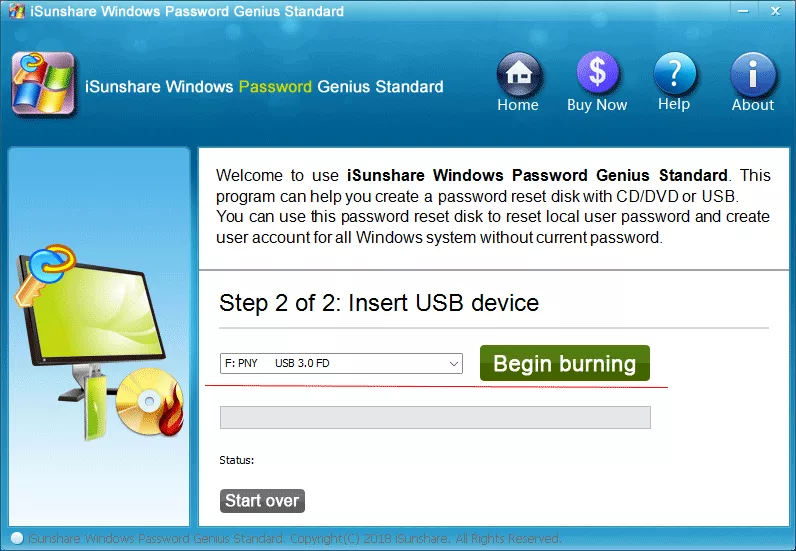
Step 2: Insert a blank USB drive, open the software, and choose USB Device. Then
click Begin Burning to create the password reset disk.
Step 3: After the reset disk is made, insert the USB into the locked Windows 11 PC and set it to boot from USB (usually F12, F2, or Esc at startup, depending on the manufacturer).
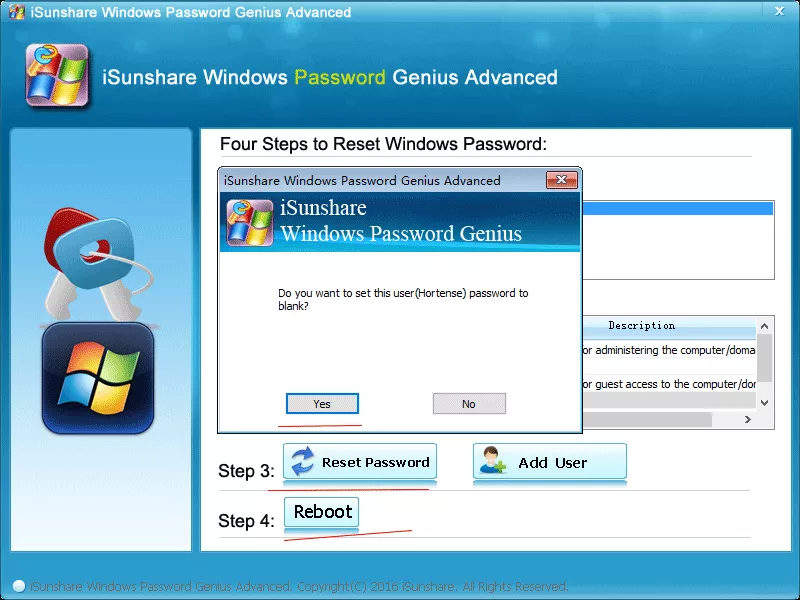
Step 4: When the software loads, select the Windows 11 system and the locked user account, then click Reset Password and confirm it.
Step 5: Click Reboot and remove the USB. You can now log in with no password at all.
If a password reset solves your problem, you can stop here. The rest of this guide is for situations where you genuinely need to erase the PC — selling it, donating it, or fixing a system that's too broken to repair any other way.
Method 1: Factory reset from the lock screen (no password needed)
This works as long as Windows 11 can reach the sign-in screen. You can easily factory reset Windows 11 without logging in.
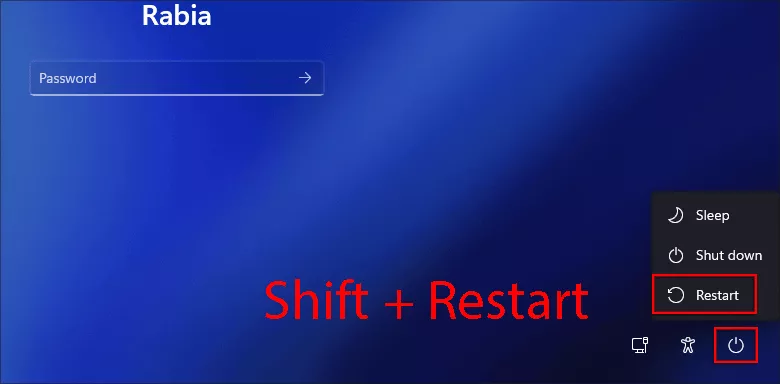
Step 1: On the lock screen, click the Power icon in the bottom-right corner. Hold Shift and click Restart at the same time.
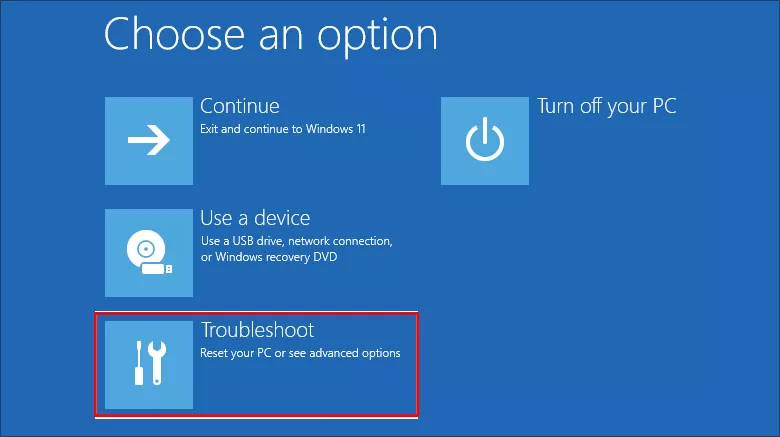
Step 2: Wait for the "Choose an option" screen, then click Troubleshoot.
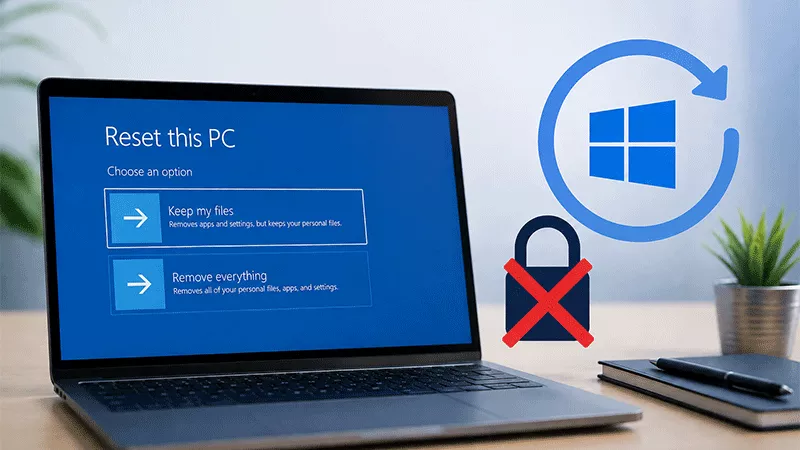
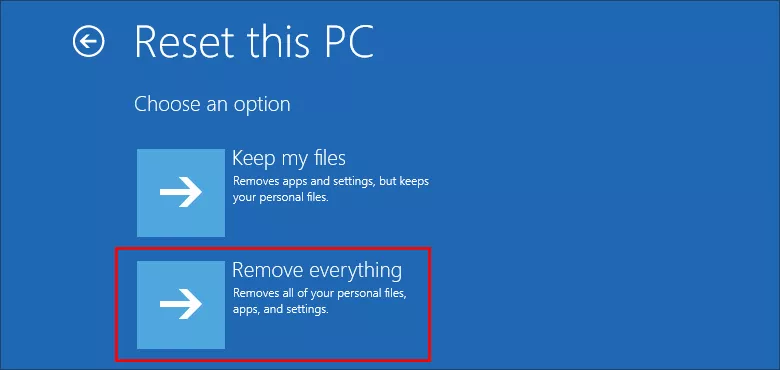
Step 3: Click Reset this PC. Then choose Remove everything (Keep my files isn't available without signing in first).
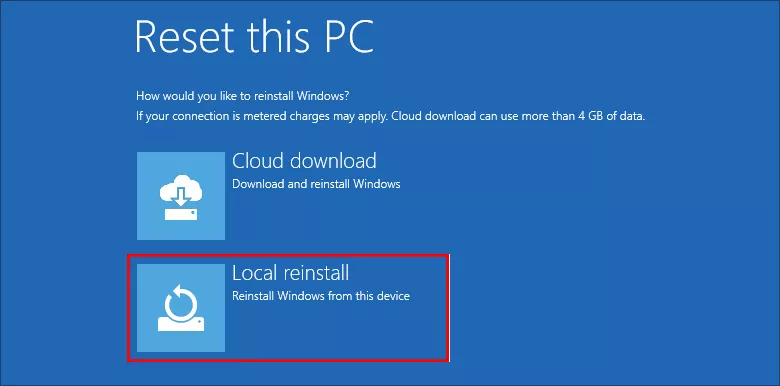
Step 4: Select either Cloud download or Local reinstall, then follow the prompts to confirm and begin the reset.
Method 2: Factory reset with Windows installation media
Use this if the PC won't boot to the lock screen at all, or if Method 1's recovery environment fails to load.
Step 1: On another computer, download the Media Creation Tool from Microsoft and create a bootable Windows 11 USB drive.
Step 2: Insert the USB into the locked PC and boot from it (press F12, F2, or Esc).
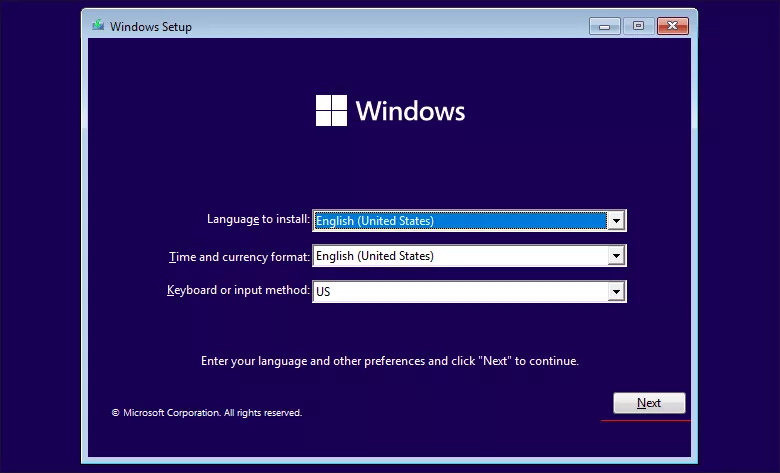
Step 3: At the Windows Setup screen, click Next to continue.
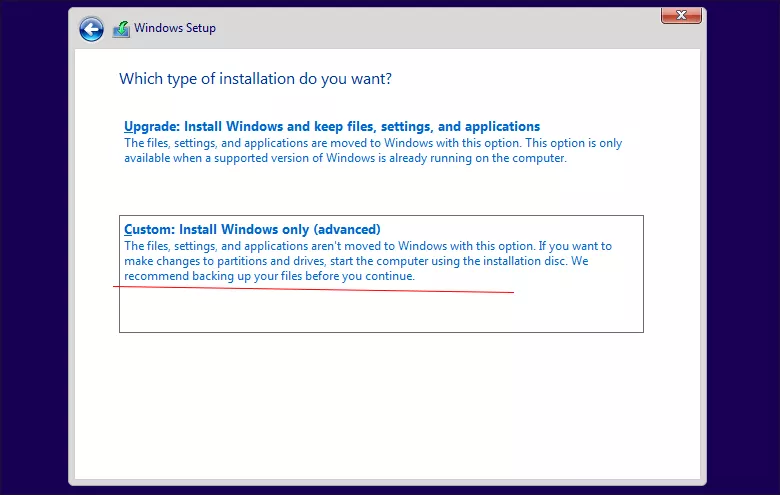
Step 4: Click Install now, then select Custom: Install Windows only (advanced).
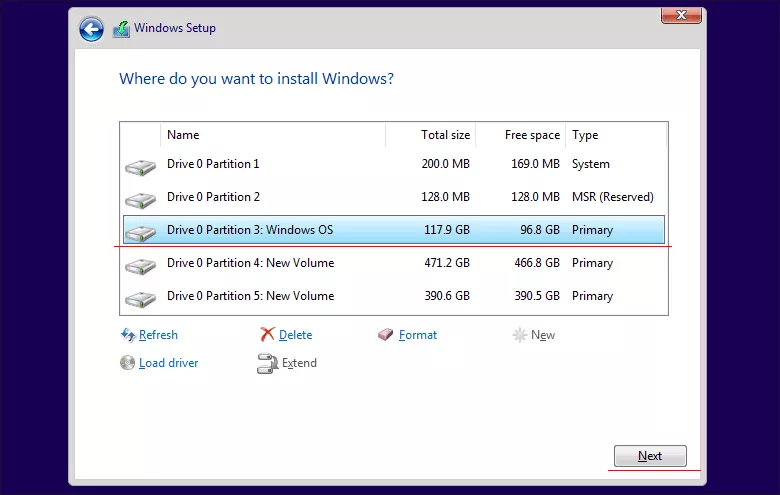
Step 5: Select the drive partition where Windows is currently installed and follow the prompts to complete a clean install, which erases the existing system and data.
FAQs on Factory Reset Windows 11
Q1: Will factory reset remove Windows 11 itself?
No. It removes your personal files, installed apps, and custom settings, then reinstalls a clean copy of Windows 11 — the operating system stays.
Q2: Can I get my password back instead of wiping everything?
Yes. If you only forgot the password, resetting it with a tool like Windows Password Genius keeps all your files and apps intact, so there's no need for a full factory reset unless you have another reason to wipe the PC.
Q3: What if my PC won't boot at all?
Use Method 2 with a Windows installation USB, which works independently of whatever is preventing the PC from booting normally.
Q4: My Windows 11 is protected with BitLocker, how can I factory reset it without BitLocker recovery key?
If your PC starts with a BitLocker Recovery screen asking for the 48-digit recovery key, you cannot use the normal reset options until the drive is unlocked. But you can use Method 2 to erase the drive and reinstall Windows.
Conclusion
If your goal is simply to use the computer again and you don't need the files, just factory reset the computer and reinstall Windows 11. Two methods are discussed in the article. What if you are locked out of the computer and forgot the Windows 11 password? You can remove the Windows 11 login password with iSunshare Windows Password Genius without losing any file.