We use cookies for personalizing content and ads and providing social media features. Your usage information on our website will be used for social media, advertising, and traffic analytics, or shared with our partners. Clicking "Accept" means you agree to use our cookies .
Error code 0x80070005 shows up as “Access is denied” and can interrupt Windows Update, Microsoft Store installs, app installs through management tools like Intune, file or folder access, and even scheduled backups. The message is the same each time, but the underlying cause depends on what you were doing when it appeared. This guide walks through the fixes in order of how often they resolve the issue, starting with the simplest.
At its core, 0x80070005 means Windows (or the Windows component you were using) tried to read, write, or modify something it didn’t have permission to touch. The most common triggers are:
Insufficient user account permissions — you’re signed in with a standard account instead of an administrator account
User Account Control (UAC) set too restrictively, blocking elevation requests
Corrupted or missing system files needed to complete the update, install, or backup
Incorrect NTFS permissions or ownership on a specific file, folder, or registry key
Third-party antivirus or security software blocking the action
A service (such as the Volume Shadow Copy service used for backups) running under an account that lacks the required rights
Because the cause varies by context, the fixes below are ordered from broadest and safest to more targeted. Work through them in sequence — most people resolve the error in the first two or three steps.
Fix 1: Run as Administrator and Check Your Account Type
This is the single most common fix, especially when the error appears during a Microsoft Store install or an app installation.
Step 1: Right-click the app or installer and choose “Run as administrator.”
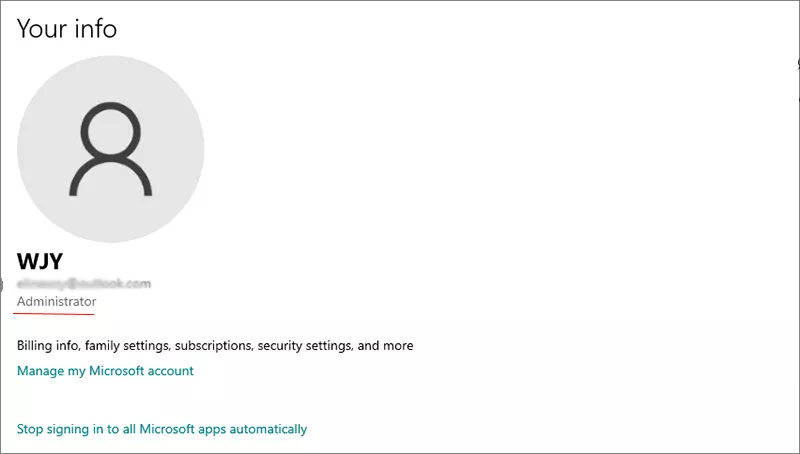
If that option is greyed out or the error persists, confirm your account type: go to Settings > Accounts > Your info and check whether it says “Administrator” under your name.
If you’re on a standard account, sign in with an administrator account instead, or ask whoever manages the PC to grant you administrator rights.
Step 2: Restart the PC and try the original action again.
Fix 2: Adjust User Account Control (UAC) Settings
UAC set to the highest level can silently block the elevation prompts that Windows Update, the Store, and some installers rely on.
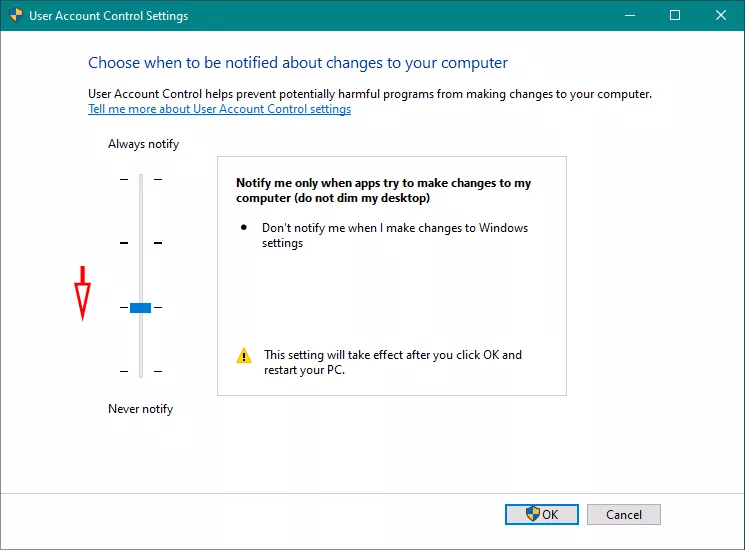
Step 1: Press Win + R, type UserAccountControlSettings, and press Enter.
Step 2: Move the slider down one notch from its current position (avoid disabling it completely, since UAC is a security feature).
Step 3: Click OK and restart your PC. Retry the update, install, or file operation that triggered the error.
Fix 3: Run the Windows Update Troubleshooter
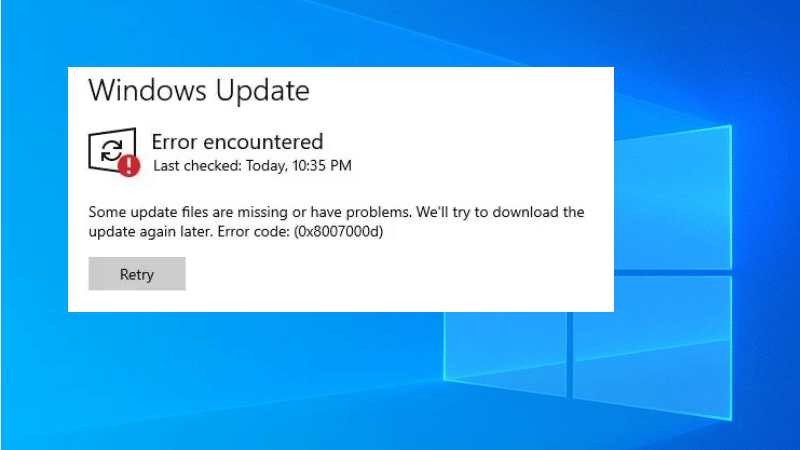
If 0x80070005 appeared specifically during a Windows Update, the built-in troubleshooter resolves it in many cases.
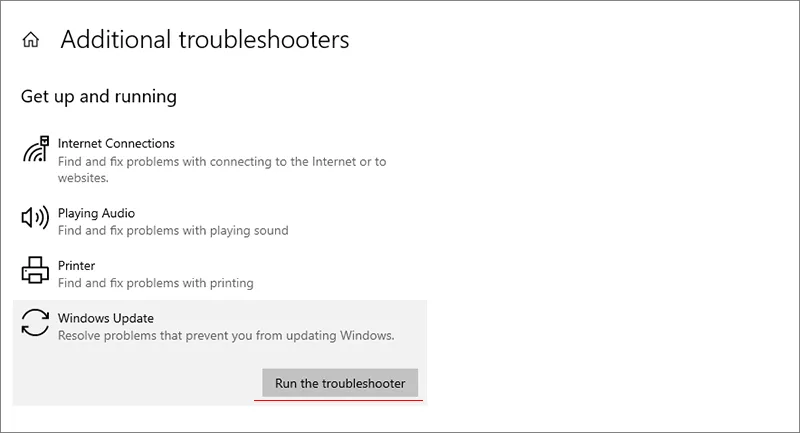
Step 1: Open Settings > System > Troubleshoot > Other troubleshooters.
Step 2: Find Windows Update and click Run. Let it scan and apply any fixes it finds, then restart your PC.
Step 3: Check for updates again.
Fix 4: Scan for Corrupted System Files (SFC and DISM)
Corrupted system files are a common hidden cause, particularly when the error keeps recurring after other fixes.
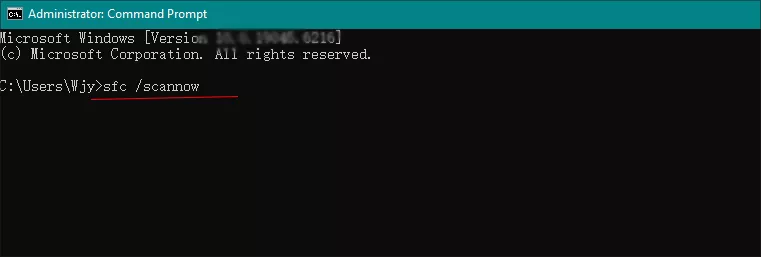
Step 1: Run Command Prompt as administrator.
Step 2: Run: sfc /scannow and let it finish completely.
If SFC reports issues it couldn’t fix, run: DISM /Online /Cleanup-Image /RestoreHealth.
Step 3: Restart your PC once both scans complete, then retry the original action.
Fix 5: Correct Folder, File, or Registry Permissions
Before you continue
Registry and permission changes affect system access controls directly. Note the current owner and permission entries before making changes, and avoid deleting permission entries rather than adjusting them.
If the error points to a specific file, folder, or registry key, the permissions on that object may not include your account.
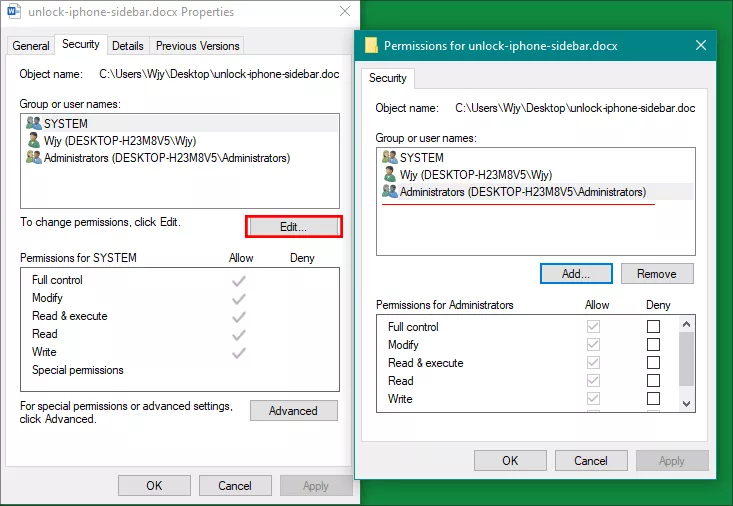
Step 1: Right-click the affected file or folder, choose Properties, then the Security tab.
Step 2: Click Edit, select your user account (or Administrators), and ensure Full Control is checked under Allow.
Step 3: If your account isn’t listed, click Add, enter your username, and click Check Names before applying.
Step 4: For registry keys, open regedit, right-click the relevant key, choose Permissions, and confirm your account or Administrators has Full Control.
Step 5: Apply the changes and retry the action that produced the error.
Fix 6: Temporarily Disable Third-Party Antivirus
Some antivirus and endpoint-security tools intercept file writes or update processes and misreport them as access-denied errors. Temporarily disable your third-party antivirus (not Windows Defender, which rarely causes this). Retry the update, install, or backup.
If that resolves it, add an exception in your antivirus for the affected process instead of leaving protection off, then re-enable the antivirus.
FAQs on Error 0x80070005 Access is Denied
Q1: Why does 0x80070005 appear when installing from the Microsoft Store?
This almost always traces back to account permissions or UAC. Confirm you’re signed in with an administrator account and that UAC isn’t blocking the Store’s elevation request, then retry the install.
Q2: I’m getting 0x80070005 when deploying an app through Intune or a company portal — what’s different here?
In managed-deployment scenarios, the error usually comes from the install running in a context without local admin rights on the device, or from another application (commonly Outlook or a similar background process) holding a file lock during install. Close conflicting applications and confirm the deployment context has the required permissions.
Q3: Does 0x80070005 during a backup mean my data is at risk?
Not on its own — it means the backup service (often Volume Shadow Copy) couldn’t get the access it needed and stopped before writing anything incomplete. Check the service account’s permissions and rerun the backup once fixed. Or you can use iSunshare CloneGo to back up your Windows data.
Conclusion
Error 0x80070005 looks the same every time, but the fix depends on where it shows up. For most people, running the installer as administrator or nudging UAC down a notch clears it immediately. If the error keeps coming back — especially during Windows Update or a backup — work through the SFC/DISM scan and permission checks before considering anything more drastic.