We use cookies for personalizing content and ads and providing social media features. Your usage information on our website will be used for social media, advertising, and traffic analytics, or shared with our partners. Clicking "Accept" means you agree to use our cookies .
Error 0x80070002 shows up when Windows 11 is checking for updates, installing a cumulative update, or running the upgrade from Windows 10 — and it almost always means the same underlying thing: Windows can't find a file it expected to be there. The update stalls, sometimes at a specific percentage like 25% or 75%, then rolls itself back and shows the error code instead of finishing.
The good news is this error is one of the more fixable ones in the Windows Update family. Below are the methods that actually resolve it, ordered from quickest checks to deeper repairs, plus what to do if a failed update left you worried about your files.
Underneath the hex code, 0x80070002 maps to the classic Windows system error ERROR_FILE_NOT_FOUND. In practice, that points to one of a handful of situations:
A required update package or manifest file is missing or was only partially downloaded
The Windows Update cache (the SoftwareDistribution folder) has become corrupted
System files that the update installer depends on are damaged
Your system clock, time zone, or region settings are off, which breaks the certificate checks Windows Update relies on
Third-party antivirus software is quarantining or blocking update files mid-download
The system drive is low on free space, so the installer can't stage the files it needs
You don't need to diagnose which one applies before you start — the methods below are ordered so you rule out the simple causes first.
Method 1: Check Your Date, Time, and Region Settings
This sounds too simple to matter, but an incorrect system clock is one of the most common triggers for this exact error, because Windows Update validates file signatures against the current time.
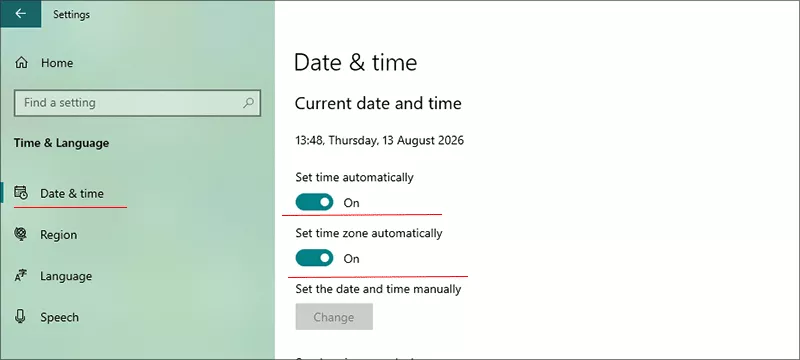
Step 1: Open Settings (Win + I) and go to Time & Language > Date & Time.
Step 2: Turn on Set time automatically and Set time zone automatically.
Step 3: Under Settings > Time & Language > Language & Region, confirm your region matches where you actually are.
Step 4: Reboot your computer and then update your Windows 11 again.
Method 2: Run the Windows Update Troubleshooter
Windows 11 ships with a built-in troubleshooter that catches a large share of update failures automatically, including this one.
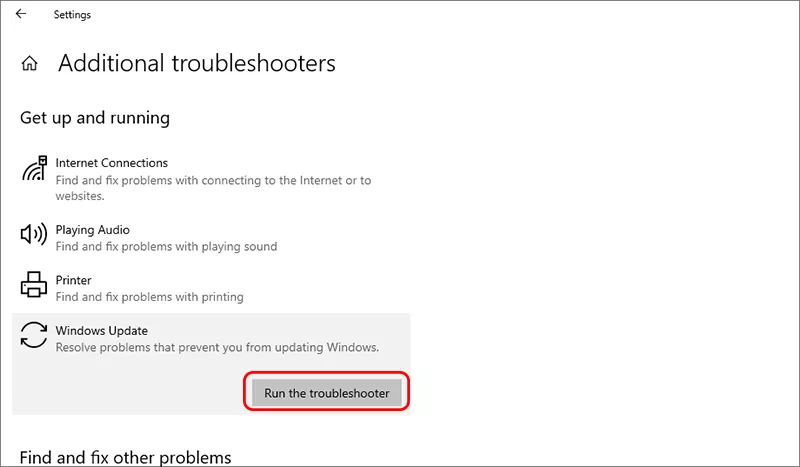
Step 2: Find Windows Update in the list and select Run the Troubleshooter.
Step 3: Let it scan and apply any fixes it finds, then restart and retry the update.
Method 3: Just Restart and Retry
If you haven't rebooted in a while, background services that Windows Update depends on may have hung. A clean restart followed by a fresh update check resolves the error more often than you'd expect, and it costs nothing to try before moving to the deeper fixes.
Method 4: Clear the Windows Update Cache
The SoftwareDistribution folder stores update files as they download. If a file inside it is incomplete or corrupted, Windows Update keeps failing on the same file every time. Clearing the cache forces a clean re-download.
Step 1: Type Run in Windows search box and open Run. Then enter servces.msc and click the OK button.
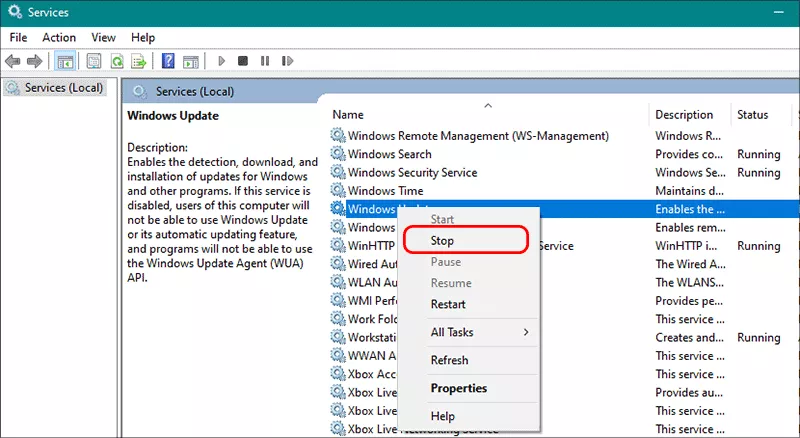
Step 2: Locate Windows Update in the list, right-click it, and choose Stop.
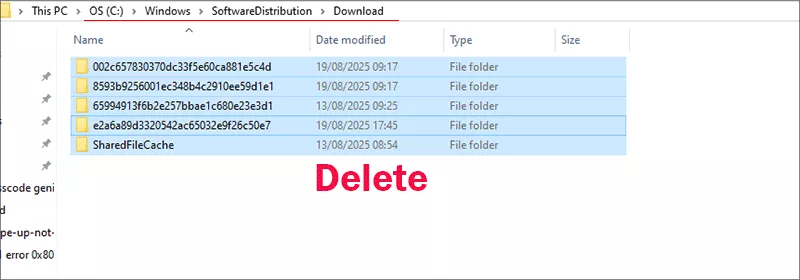
Step 3: Open File Explorer and go to C:\Windows\SoftwareDistribution.
Delete everything inside the Download subfolder (leave the folder itself in place).
Step 4: Go back to Services, right-click Windows Update again, and choose Start.
Step 5: Restart your PC and check for updates again.
Method 5: Repair System Files with SFC and DISM
These two built-in tools scan for and repair damaged Windows system files, which is one of the most common root causes behind ERROR_FILE_NOT_FOUND during an update.
Step 1: Open the Start menu, type cmd, right-click Command Prompt, and choose Run as administrator.
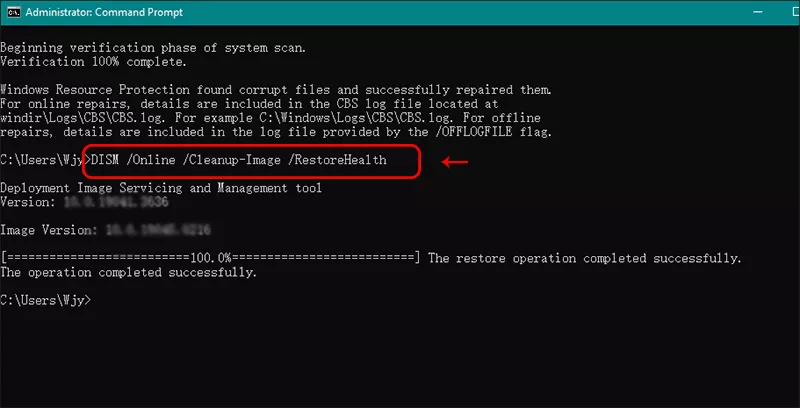
Step 2: Run the DISM repair first, since it can fix the underlying image that SFC pulls clean files from: DISM /Online /Cleanup-Image /RestoreHealth .
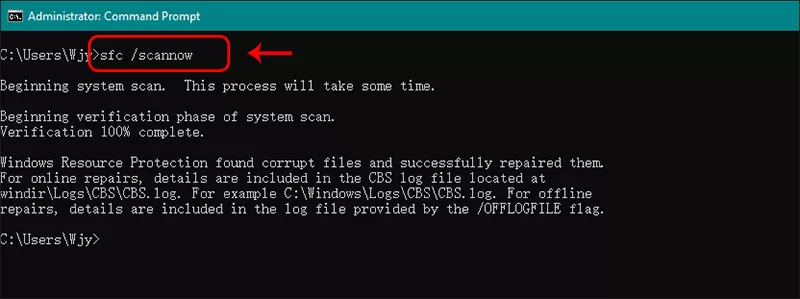
Step 3: Once that finishes, run: sfc /scannow. Let both scans complete fully, then restart your computer before trying the update again.
Method 6: Reset Windows Update Components Manually
This is a more thorough version of Method 4 — it stops every service Windows Update touches and renames both its cache folders, forcing Windows to rebuild them from scratch.
Step 3: Close Command Prompt and run Windows Update again.
Method 7: Check Disk Space and Temporarily Disable Third-Party Antivirus
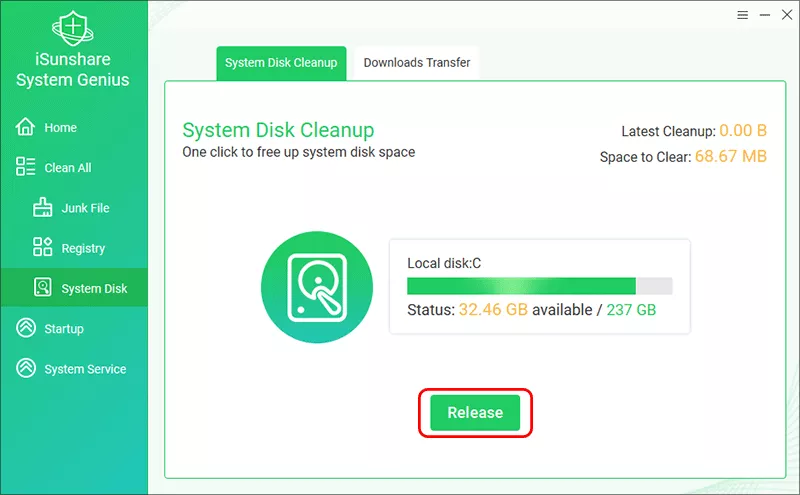
Windows 11 updates need several gigabytes of free space to stage files before installing. If your system drive is close to full, free up space (Settings > System > Storage shows what's using it) and try again. Or you can use iSunshare System Genius to release more space on your system drive within simple clicks.
If you're running non-Microsoft antivirus software, disable it temporarily for the update — some security suites flag update installer files as suspicious and quarantine them mid-download, which produces this exact error.
What If the Error Happens During a Windows 10-to-11 Upgrade
When 0x80070002 shows up specifically while upgrading from Windows 10, rather than during a routine update on an already-installed Windows 11 system, the cleanest fix is usually to bypass the in-place upgrade path and reinstall using official Microsoft installation media.
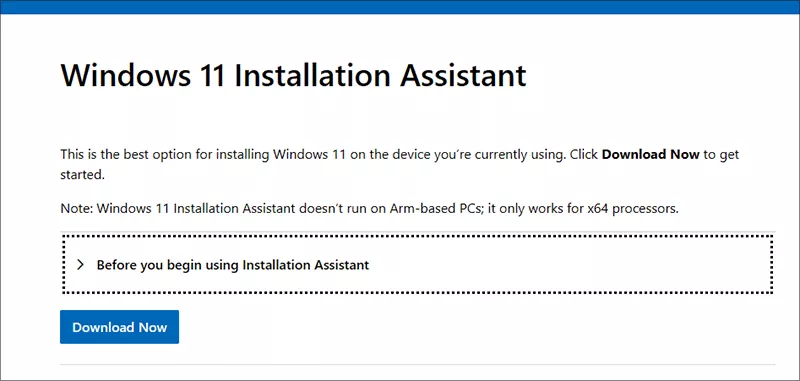
Step 1: Download the Windows 11 Installation Assistant or Media Creation Tool from Microsoft's official download page.
Step 2: Run the tool and choose Upgrade this PC now.
Step 3: Follow the prompts to download fresh installation files and complete the upgrade.
Because this method downloads a complete, verified set of installation files rather than patching your existing system incrementally, it sidesteps whatever missing or corrupted file was causing the error in the first place.
If a Failed Update Left You Worried About Your Files
A failed or interrupted update doesn't usually touch your personal files, but a rocky update — especially one involving a rollback, a forced restart mid-installation, or a manual cache reset — can occasionally leave files missing, inaccessible, or hidden in a leftover Windows.old folder. If that's happened to you, iSunshare BitGenius can scan the affected drive and recover lost or deleted files before you do anything else that might overwrite them.
iSunshare Reliable Data Recovery Software
Recovers files lost after a failed or interrupted Windows update
Scans damaged, formatted, or inaccessible partitions
Filters results by file type, size, or date to speed up recovery
Supports documents, photos, videos, audio, and email files
Avoid saving new files to the affected drive until recovery is complete — writing new data increases the chance of permanently overwriting whatever you're trying to recover.
FAQs on Windows 11 Error 0x80070002
Q1: Does error 0x80070002 mean my hard drive is failing?
No. This error is almost always about a missing or corrupted update file, not a failing drive. A quick way to rule out drive health is running chkdsk C: /f from an administrator Command Prompt.
Q2: I ran SFC and DISM and the error is still happening. What to do now?
Try Method 6 (manual component reset) next, and double-check free disk space and antivirus interference with Method 7. If you're specifically mid-upgrade from Windows 10, clean reinstall via the Media Creation Tool has the highest success rate at that point.
Q3: Is 0x80070002 the same as 0x80070003?
They're different codes but share the same root cause — a missing file that Windows Update expected to find. Every method in this guide applies to 0x80070003 as well; there's no need to treat it as a separate problem.
Q4: Can I keep using my PC while troubleshooting this error?
Yes. This error only affects the update process itself; it doesn't put your system in an unstable state, so normal use is fine while you work through the fixes.
Conclusion
Error 0x80070002 is frustrating in the moment, but it's rarely a sign of serious damage to your system. Start with the date/time check and the built-in troubleshooter, work through the cache clear and SFC/DISM repair if needed, and fall back to a clean reinstall via the Media Creation Tool only if you're mid-upgrade and nothing else has worked. If you're worried about files after a rough update, run a recovery scan before you do anything else with the affected drive.